
SPEED UP YOUR HARD DISK SPEED[READ AND WRITE]
To speed up your hard disk speed means, its read and write speed. For this we need to configure a special buffer in the computer’s memory in order to enable it to better deal with interrupts made from the disk. This tip is only recommended if you have 256MB RAM or higher.
Follow these steps:
1. Open Run Command –> Start – >RUN

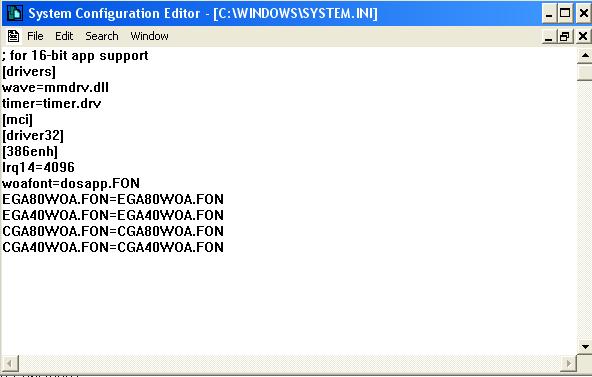
2. Type SYSEDIT.EXE This will open system editor window Expand the system.ini file window. Scroll down almost to the end of the file till you find a line called [386enh]. Press Enter to make one blank line, and in that line type Irq14=4096
Note:
This line IS CASE SENSITIVE! Click on the File menu, then choose Save. Close SYSEDIT and reboot your computer Done. Speed improvement will be noticed after the computer reboots.
 Extra Points:
 The most speed improvement is visible with IDE drives; however there are reports that this tweak also does good for SCSI disks. In any case, it won’t harm your system, so don’t worry to try it.


